This article walks you through adding addresses to your Blocked Sender List or Safe Sender List in MailShield Quarantine. Use these lists to control which senders are quarantined and which are always allowed through.
Manage your Senders Lists
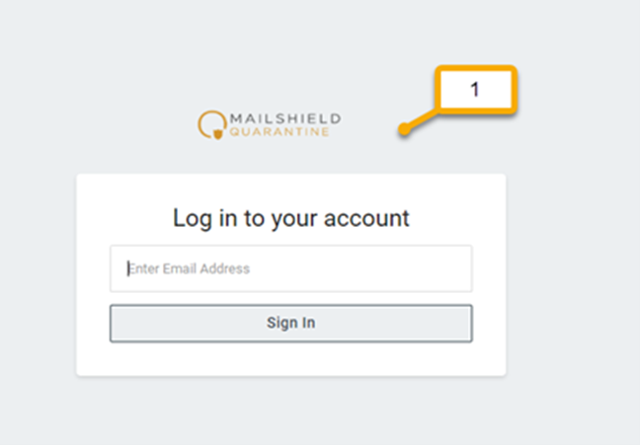
Step 1: Sign in to MailShield Quarantine
Navigate to the MailShield Quarantine login page and sign in with your O365 credentials.
Step 2: Open Senders Lists
Once you are signed in, navigate to Email and select Senders Lists.
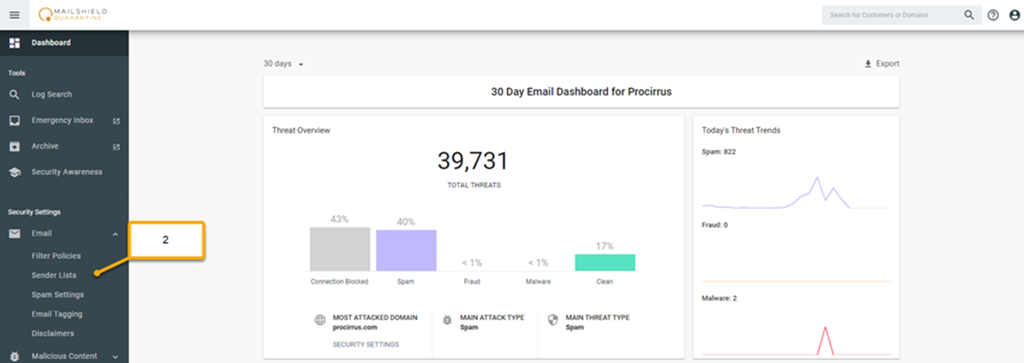
Step 3: Add an address to a list
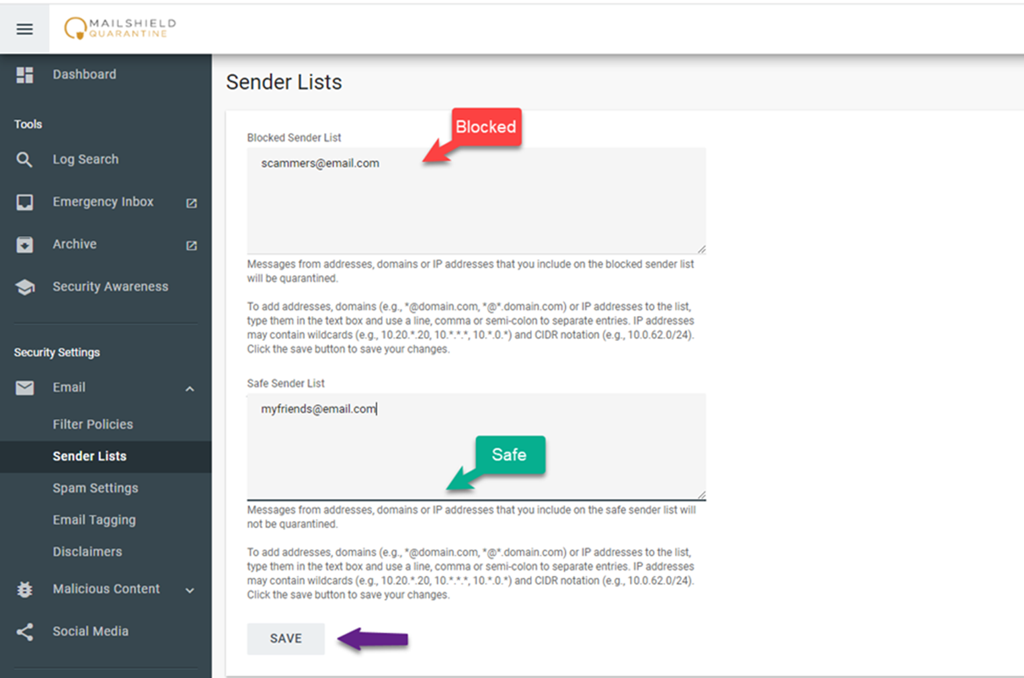
Inside Senders Lists you will see two options: Blocked Sender List and Safe Sender List. To add an email to either list, enter the email address and click Save.
- Blocked Sender List: Messages from addresses, domains, or IP addresses on this list will be quarantined.
- Safe Sender List: Messages from addresses, domains, or IP addresses on this list will not be quarantined.
Tip: You can add a full domain (e.g., example.com) to either list to apply the rule to every sender at that domain.
Was this article helpful?
That’s Great!
Thank you for your feedback
Sorry! We couldn't be helpful
Thank you for your feedback
Feedback sent
We appreciate your effort and will try to fix the article