Profax is ProCirrus's digital faxing service, giving subscribers several convenient ways to send and receive faxes without dedicated fax hardware. This article covers the methods available for sending faxes (from Outlook, Office applications, or the Profax web interface), the four ways inbound faxes can be delivered, and how to navigate the Profax web client.
Sending Faxes
From Outlook
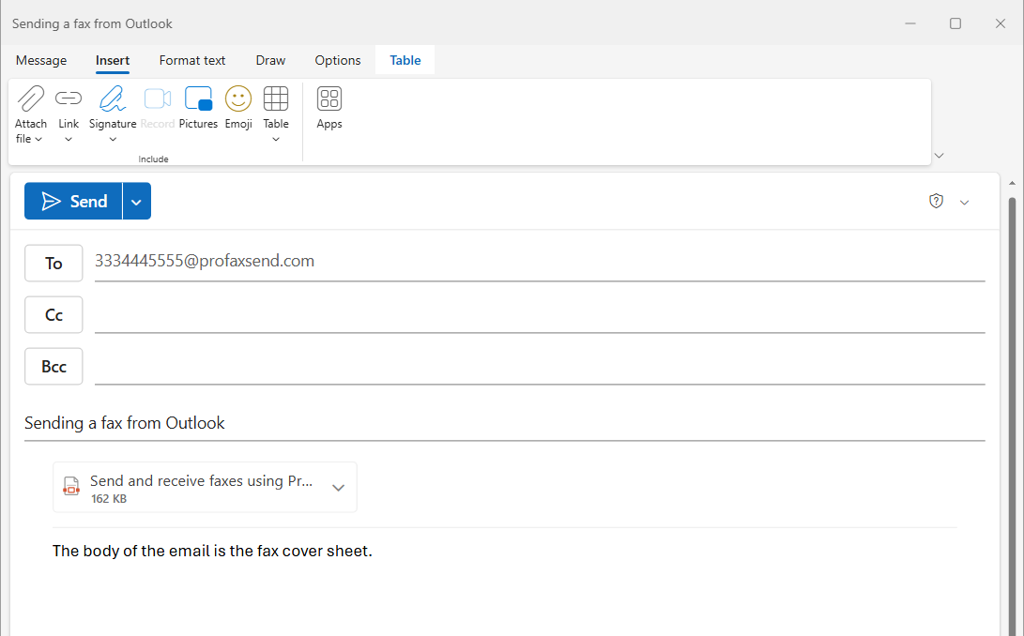
Outlook is the most convenient way to send faxes with Profax. To send a fax from Outlook, create an email and, instead of sending it to an email address, send it to the recipient's fax number followed by @profaxsend.com. For example: 3334445555@profaxsend.com. The body of your email becomes the fax cover sheet and any attachments become the faxed pages.
Note:
Do not add punctuation to the number (no parentheses or dashes). Use the digits only, followed by @profaxsend.com.
For convenience, consider creating a new contact group called "Faxes" for frequently used numbers.
You will receive a transmission report a few minutes after sending your fax.
From Office Applications
When working in Office applications such as Word or Excel, you can fax your documents directly in two ways:
Email the document to (FaxNumber)@profaxsend.com.
Print the document to the printer named Profax Web Fax. The Profax Web Compose Fax page will open with your document already attached.
From the Web Interface
Sign in to the Profax web client here: Login - Fax Client.
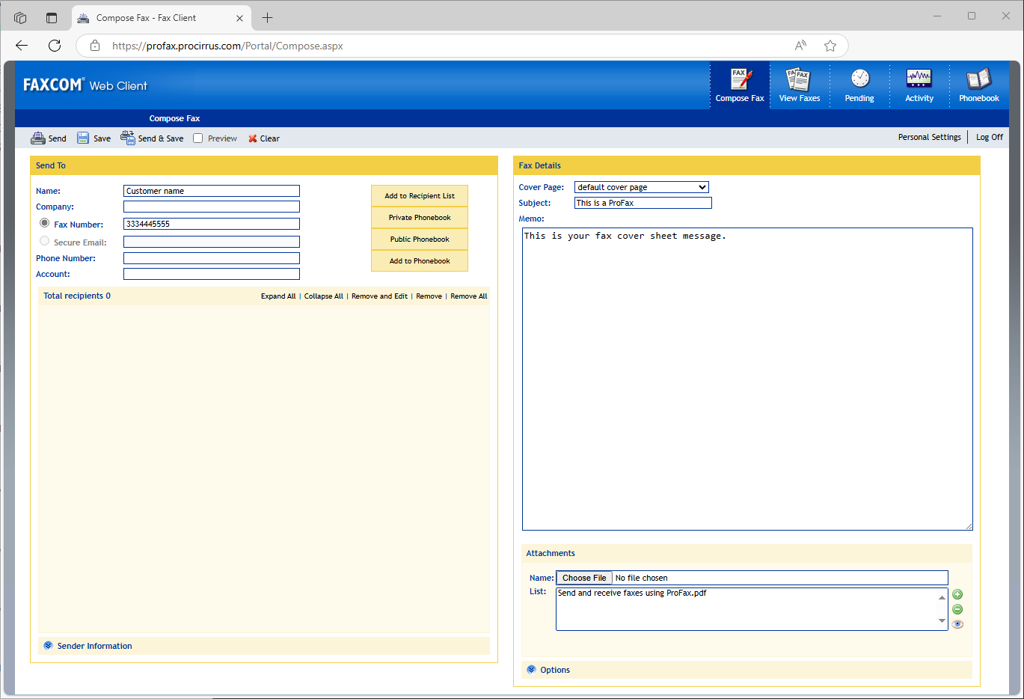
The Profax interface is straightforward. To send a fax, click Compose Fax. Address the fax on the top left, add comments to your cover page on the right, and add attachments on the bottom right. When you're ready, click Send in the top left corner.
Receiving Faxes
There are four ways you may receive inbound faxes, depending on how your account was originally set up:
Inbound faxes arrive in your Outlook Inbox. This is the most common setting.
Inbound faxes arrive in the View Faxes tab in the web interface. If your account is set to receive faxes in Outlook, they will not appear here.
Inbound faxes arrive in a dedicated fax email account. If your company uses this setting, an additional mailbox will be visible on the left navigation bar in Outlook.
Inbound faxes are routed to a SharePoint library. If your company uses this setting, faxes are delivered to your company's SharePoint site, and you can set alerts on the library to be notified of new faxes.
If you have any questions about how your fax service is configured, contact ProCirrus Support at support@procirrus.com.
Web Interface Navigation Options
Five tabs are commonly used on the Profax navigation bar. Personal Settings can be reached from the submenu next to the Logoff link.
Compose Fax: Create faxes here. The left side is for adding recipients, the top right is for your cover page, and the bottom right is for adding attachments.
Note: You will not have access to your ProZone files when accessing Profax from a browser outside of a ProZone session.
View Faxes (X): View faxes you have received. If your account is set to deliver inbound faxes to Outlook or SharePoint, they will not appear here.
Pending: When faxes are sent, they are queued until they succeed or fail. If you've sent a fax and the recipient hasn't received it, check here first.
Activity: A log of all your faxes. In the Type column, RX indicates a received fax and TX indicates a sent fax.
Phonebook: If you use the web client instead of Outlook, the Phonebook lets you store commonly used public or private fax numbers.
Tip: Not sure which receiving method your firm is set up for? Contact our Support team and we'll be happy to confirm your configuration.
Was this article helpful?
That’s Great!
Thank you for your feedback
Sorry! We couldn't be helpful
Thank you for your feedback
Feedback sent
We appreciate your effort and will try to fix the article