You can set up Outlook on your iPhone or iPad for on-the-go access. This article's contents apply to either iOS device interchangably.
Web access
To reach your email from a web browser, navigate to https://outlook.office365.com and sign in with your normal credentials.
Smartphone setup
You can find full instructions for setting up your smartphone on Microsoft's support site at the links below. Before you begin, please:
- Remove your previous Exchange account from the device.
- Use outlook.office365.com as the server when prompted.
Set up Outlook for iOS for the first time
Step 1: Download and open Outlook for iOS
Download Outlook for iOS from the App Store, then open it. The icon looks like this:

Note: Confirm your iOS version meets Microsoft's requirements. See Office system requirements for the current minimums.
Step 2: Add your account
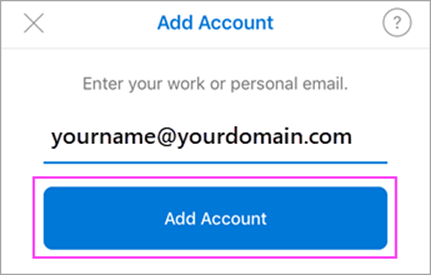
If this is your first time using Outlook for iOS, enter your full email address and tap Add Account.
If Outlook is already set up with another account, open the Menu, tap Settings, then tap Add Account > Add Email Account.
Step 3: Confirm your email provider
If Outlook asks you to choose an email provider, contact your IT administrator for support, since there may be a configuration issue.
Note: You can also set up your email account manually using IMAP or POP if needed.
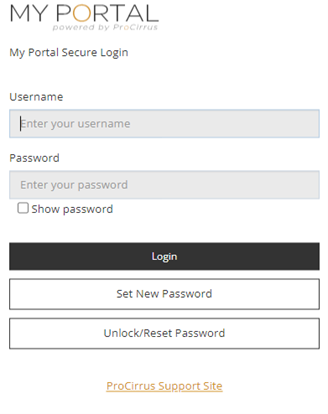
Step 4: Enter your ProZone credentials
Enter the email address and password associated with your ProZone login, then tap Login.
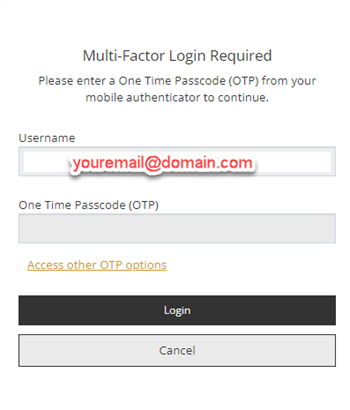
Step 5: Verify with multi-factor authentication
If multi-factor authentication is enabled on your account, verify your identity using your normal MFA method, then tap Login.
Step 6: Finish setup
Accept any permission prompts you receive. Swipe through the feature tour, and you are ready to use Outlook for iOS.
Tip: If you run into trouble during setup, contact the ProCirrus support team and reference this article.
Was this article helpful?
That’s Great!
Thank you for your feedback
Sorry! We couldn't be helpful
Thank you for your feedback
Feedback sent
We appreciate your effort and will try to fix the article