The start of every work day involves accessing the ProZone. This article covers step-by-step instructions on how to log in, use your multifactor authentication, notes about session timeouts, and how to disconnect or end your ProZone session.
Video: Accessing the ProZone
What is the ProZone?
The ProZone is a remote desktop hosted on a secure server rather than your local workstation. Applications appear and behave as though they are running locally, but they are streamed to your device from the server. Working in the ProZone provides several advantages:
- A consistent experience across any device used to log in.
- Applications, favorites, and files remain the same regardless of location or device.
- Improved security, as data stays on the server and is both backed up and encrypted.
Your day to day operation in the ProZone is much the same as it would be on your local device. The biggest difference is how you login and access the ProZone, so we'll cover that first.
Logging into MyPortal
MyPortal is a single sign-on portal. After signing in once, all applications and links inside the portal authenticate automatically. Individual passwords are not required for each one.
Access methods
- If you are using a ProCirrus managed Workstation, double-click the ProZone MyPortal icon on your desktop:

- If you are using a device not managed by ProCirrus and your firm has approved its use, open a web browser and navigate to https://myportal.procirrus.com.
Note: You must first install Citrix Workspace before connecting from a non-managed device. See our Installing Citrix Workspace article for step-by-step instructions on this process.
Step 1: Sign in with your ProZone credentials
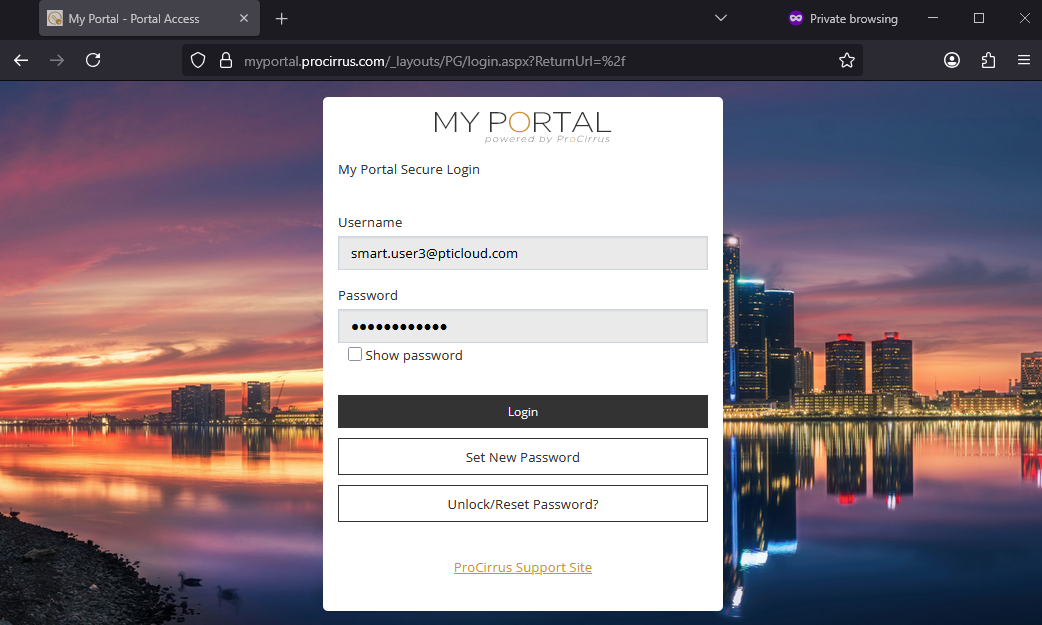
On the MyPortal sign-in page, enter your full ProZone email address and password. These will be provided to you by your firm administrator prior to accessing the ProZone for the first time. Click Login.
Step 2: Complete multifactor authentication
ProCirrus requires multifactor authentication (MFA) for all logins. Your administrator should have configured your MFA prior to your first login. For more information, see our multifactor authentication article.
MFA is most commonly handled through an authenticator app such as Google Authenticator or Microsoft Authenticator.
Some firms do rarely use alternative MFA methods. In such cases, follow the instructions of your admin instead of below.
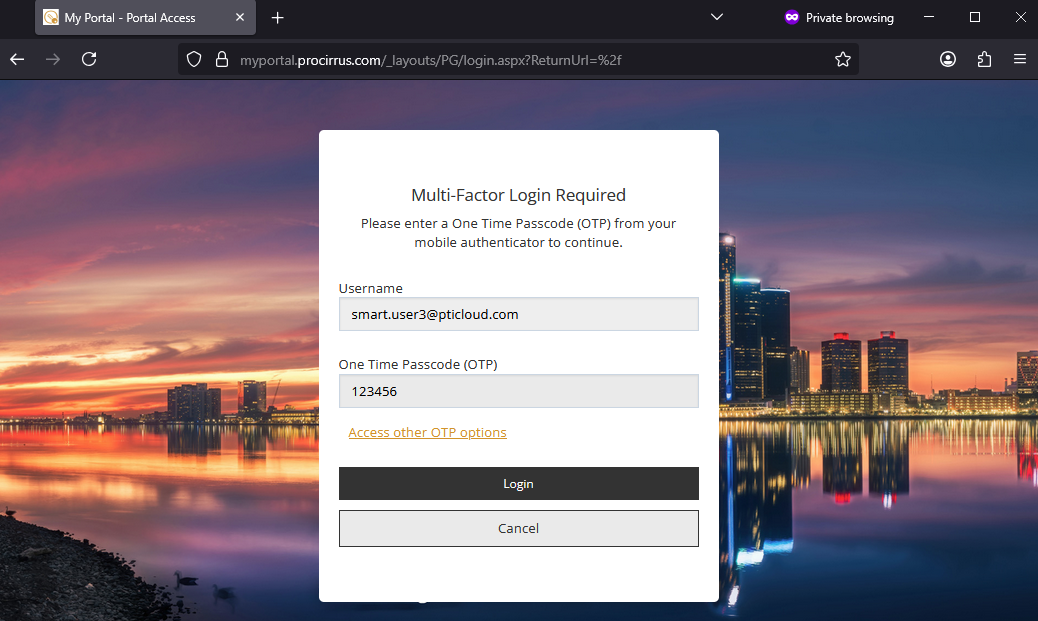
To authenticate using an authenticator app:
- Open the authenticator app and locate the 6-digit one-time password.
- Enter the code on the authentication screen.
- Click Login.
The MyPortal Landing Page
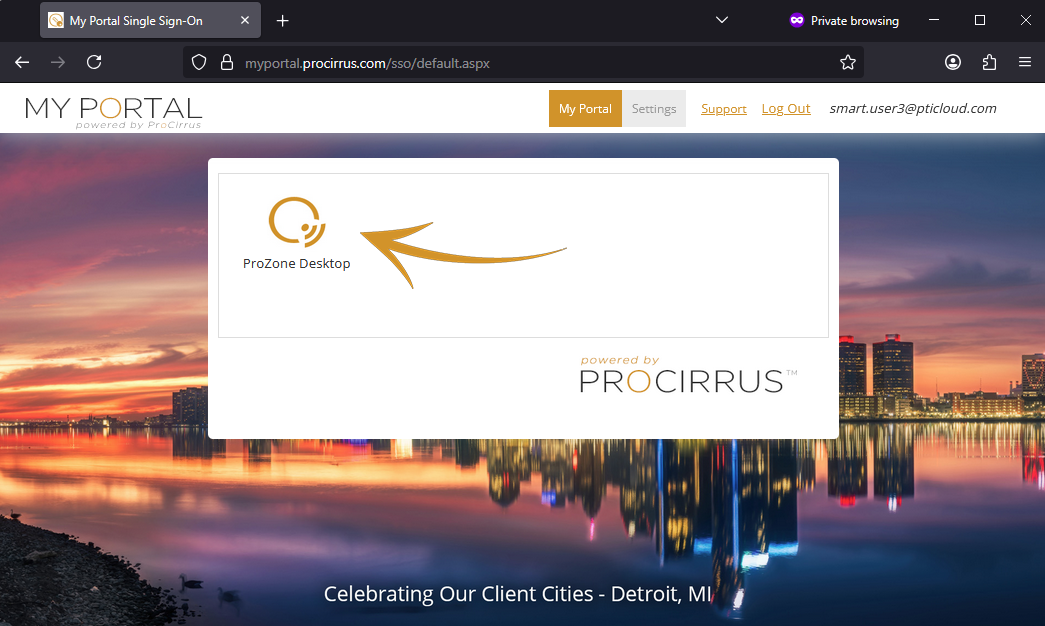
After authentication, you will be automatically redirected to the MyPortal landing page. You may have one or many options on this page; the number varies by organization and user setup.
The landing page provides quick access to support requests, account settings, and the single sign-on (SSO) options available to you.
To continue into the ProZone, select the ProZone Desktop icon 
The ProZone Desktop
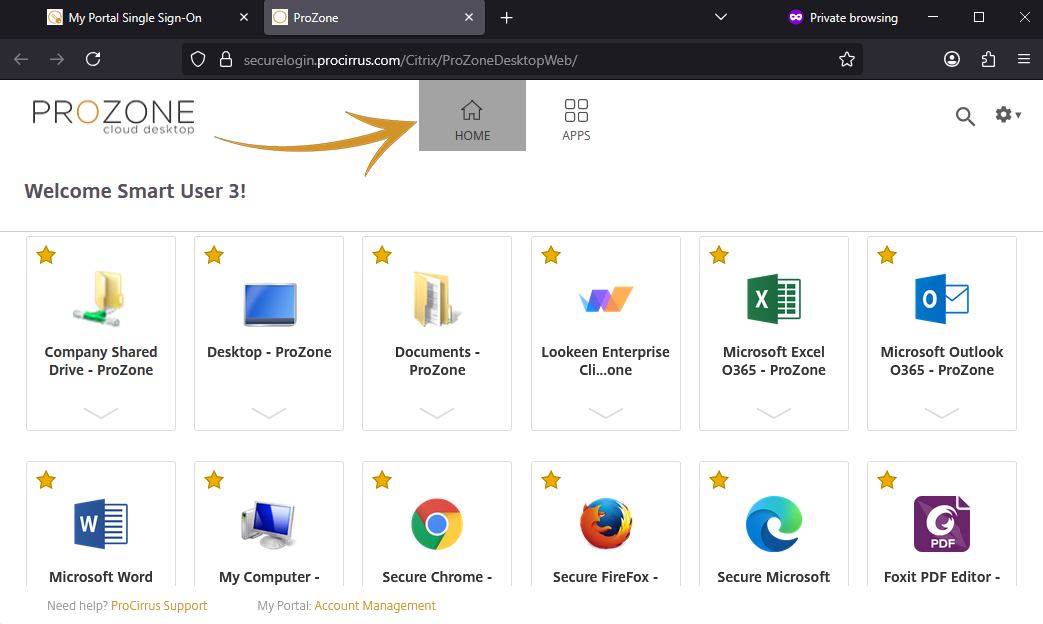
The ProZone desktop functions much as the desktop on your local device does. Here you will find the applications available to you, and launch them by left-clicking on them.
The first application opened each day will take 15-45 seconds to load, depending on the complexity of your user account. Allow this application to fully load before opening another.
Tip: Some firms require a specific application to be opened first. If your firm administrator requests it, allow that specific app to open before moving on to others.
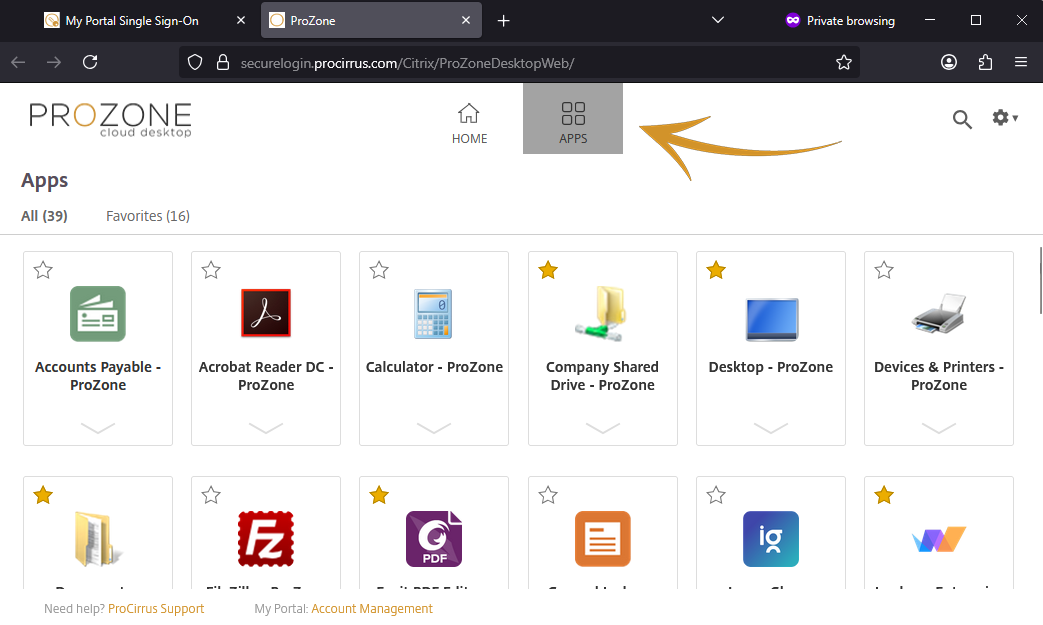
Home tab and Apps tab
The ProZone desktop provides two ways to view your applications.
- Home tab: this screen showcases your saved favorite applications for quick access.
- Apps tab: this screen houses all applications available to you - a good place to keep services you rarely use.
Managing applications on the Home tab
- To add an application: On the Apps tab, click the star icon next to the application. It will appear on the Home tab.
- To remove an application: Click the star icon again, either on the Home or Apps tab. It will be removed from the Home tab when you next return to the Home tab.
Your applications will appear on the home tab in the order they are starred by you.
Session Timeouts
The ProZone enforces two inactivity thresholds.
If you do not interact with the ProZone desktop within 2 hours, a prompt will appear warning that your desktop session will end. Your open applications will continue to function; however, upon returning to the ProZone desktop, you will be prompted to log in again.
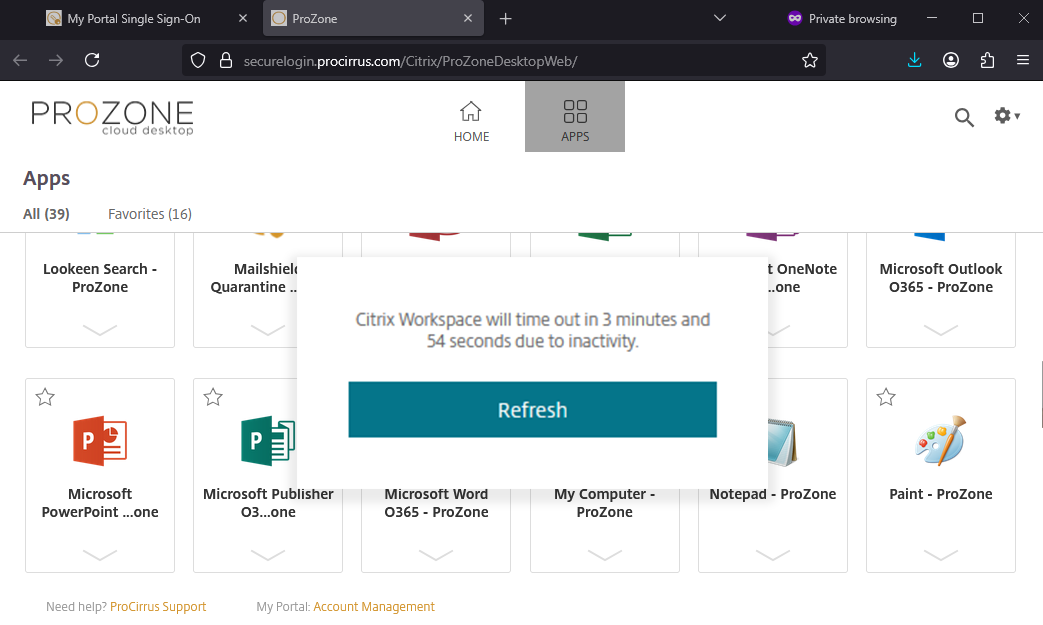
If you do not interact with either the ProZone desktop or an open ProZone application for 4 hours, your full ProZone session will end. All programs will end, and any unsaved data will be lost.
| Inactivity | Result |
|---|---|
| 2 hours | A disconnection prompt appears with a 5-minute timer. If the prompt is not acknowledged within that window, the session disconnects. Open applications continue to run while in active use, but a new login is required to return to the ProZone. |
| 4 hours | The full session ends, including all open applications. |
Important: Save all work before stepping away for an extended time. Unsaved data will be lost if your session ends.
Using the Connection Center
The Connection Center is the primary tool for managing stuck or frozen programs and for ending a ProZone session. It functions similarly to the Windows Task Manager, but for the ProZone session rather than the local workstation.
The Connection Center icon is available on both the desktop and taskbar of ProCirrus managed devices. For non-managed devices, it can be found in the system tray behind the chevron icon ( ) on Windows computers.
Terminating a stuck program
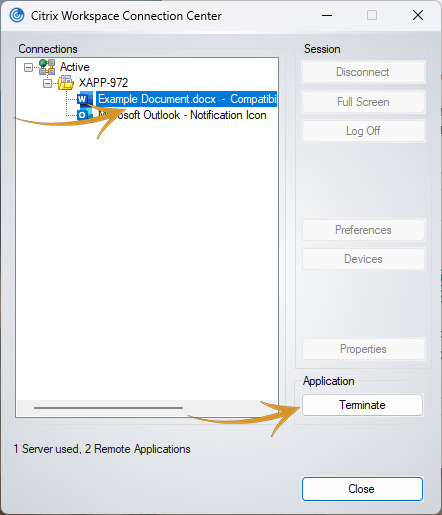
Restarting the local workstation does not resolve issues with applications running in the ProZone. To force a stuck application to close:
- Open the Connection Center.
- Select the application that needs to end.
- Click Terminate from the menu on the right side.
Disconnect vs. Log Off
The Connection Center offers two options for leaving a session, each with different behavior:
| When you... | What Happens | Recommended Use |
|---|---|---|
| Disconnect | The system pauses your session. Open applications remain running on the server. The session can be resumed within 4 hours; after that, it logs off automatically. | Brief breaks such as lunch, moving between rooms, or switching between a desktop and laptop. |
| Log Off | The system ends your session completely. All applications close and the next login starts a fresh session. | End of day, or any time a clean session reset is needed. |
Ending Your Session
A ProZone session can be ended from either the Connection Center or from within the ProZone itself. Both methods fully close the session for the day.
From the Connection Center
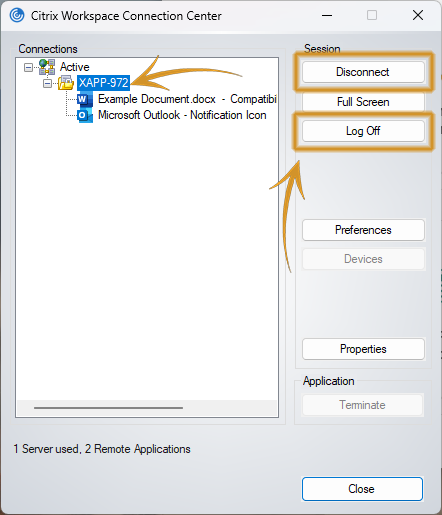
- Open the Connection Center.
- Highlight the active session (displayed as a server name followed by a string of numbers).
- Select Disconnect to pause the session, or Log Off to end it.
From within the ProZone
- Click the gear icon in the upper-right corner of the ProZone.
- Select Log Off.
- In MyPortal, select Log Out.
Was this article helpful?
That’s Great!
Thank you for your feedback
Sorry! We couldn't be helpful
Thank you for your feedback
Feedback sent
We appreciate your effort and will try to fix the article