Follow the steps below to add your ProZone desktop and applications to your iPhone or iPad.
Note: The screenshots in this article are from an iPhone, but the steps are the same on iPad.
Setting up Citrix Workspace on iPhone or iPad
Step 1: Install Citrix Workspace from the App Store
Open the App Store on your device and install Citrix Workspace.
Step 2: Launch Citrix Workspace
Once the app finishes downloading, open it from your home screen.
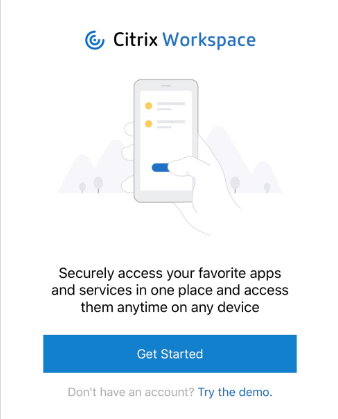
Step 3: Tap Get Started
On the first screen, tap Get Started.
Step 4: Open Manual Setup
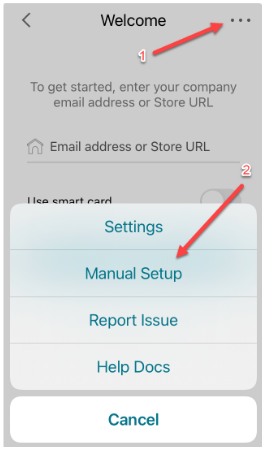
On the welcome screen, tap the three dots in the upper right corner, then select Manual Setup.
Step 5: Enter the server address
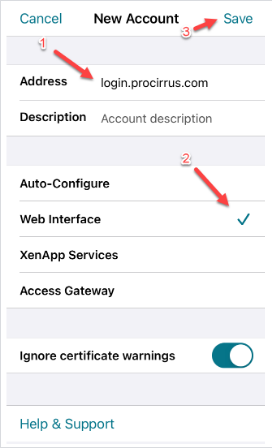
In the address field, enter login.procirrus.com, then select Web Interface. Tap Save in the upper right corner.
Important: Do not enter your email address in this field. Enter only the server address login.procirrus.com.
Step 6: Sign in with your ProZone credentials
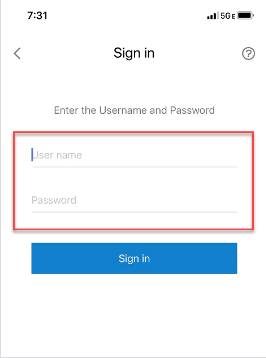
Enter your ProZone username and password.
Note: If multifactor authentication is enabled on your account, you will also be prompted to enter your one-time passcode.
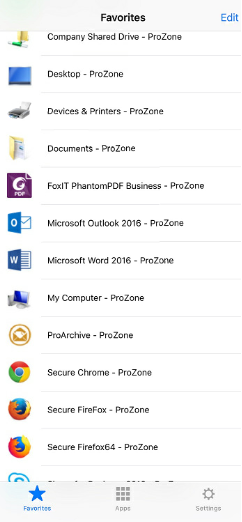
Step 7: Launch your applications
Your ProZone applications are now available on your device. Tap any application to launch it.
Was this article helpful?
That’s Great!
Thank you for your feedback
Sorry! We couldn't be helpful
Thank you for your feedback
Feedback sent
We appreciate your effort and will try to fix the article