Once you are logged into the ProZone, locating the documents you need is likely the next step. This article covers the file access options available within the ProZone, how the file explorer is laid out, and how to pin folders to Quick Access for faster navigation.
Video: Navigating Files in the ProZone
File Access Options
The ProZone provides multiple options for accessing your documents. This article covers the three most commonly used locations:
- Documents: Personal documents private to your user account.
- Desktop: Personal documents stored in your Desktop folder.
- Company Shared Drive: Shared files and folders accessible to your organization which you have been given permission to view..
Some organizations also use a Document Management System (DMS) for file access. DMS navigation is not covered in this article. Consult with your firm's administrator for details on any DMS you may use and how the steps differ from the information here.
The File Explorer Interface
Opening any of the three file locations launches a file explorer. The layout will be familiar to anyone who has browsed files on a Windows computer.
The Windows-style file explorer appears even when accessing the ProZone from a Mac environment. The interface is consistent across all devices.
- Left panel: A list of the drives and locations you have permission to view.
- Center panel: The contents of the location currently selected in the left panel.
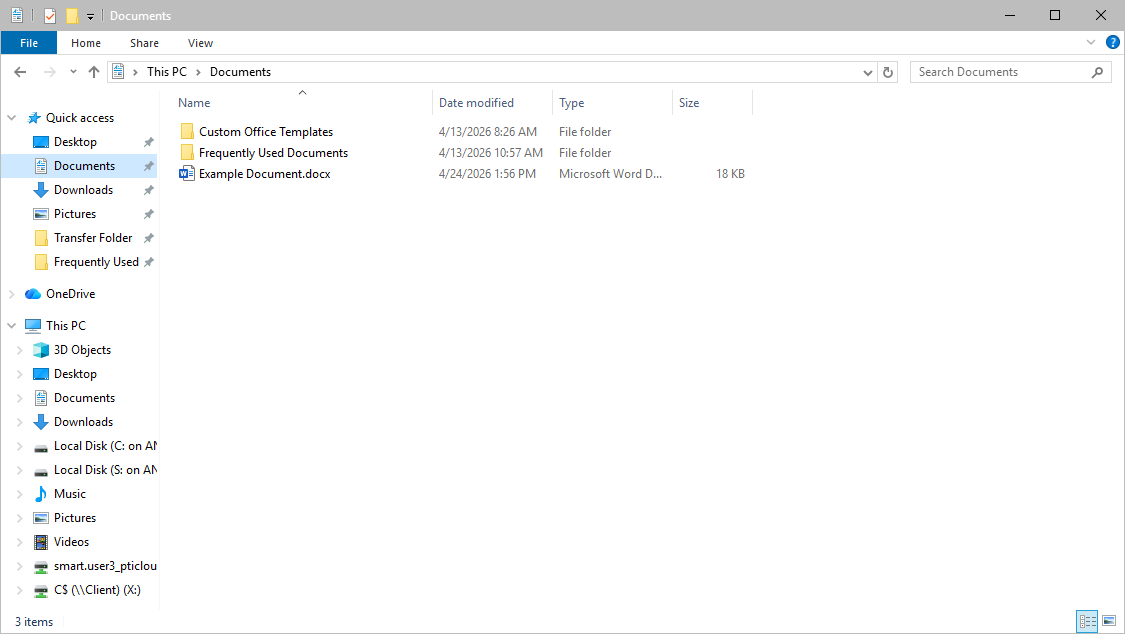
Note: The Desktop in the ProZone functions as a file repository rather than an interactive space with a background image like it would on your local workstation. It is most commonly used as a temporary hosting space for files that will later be sorted into other locations, though each user's usage will vary depending on their preferences.
Pinning Folders to Quick Access
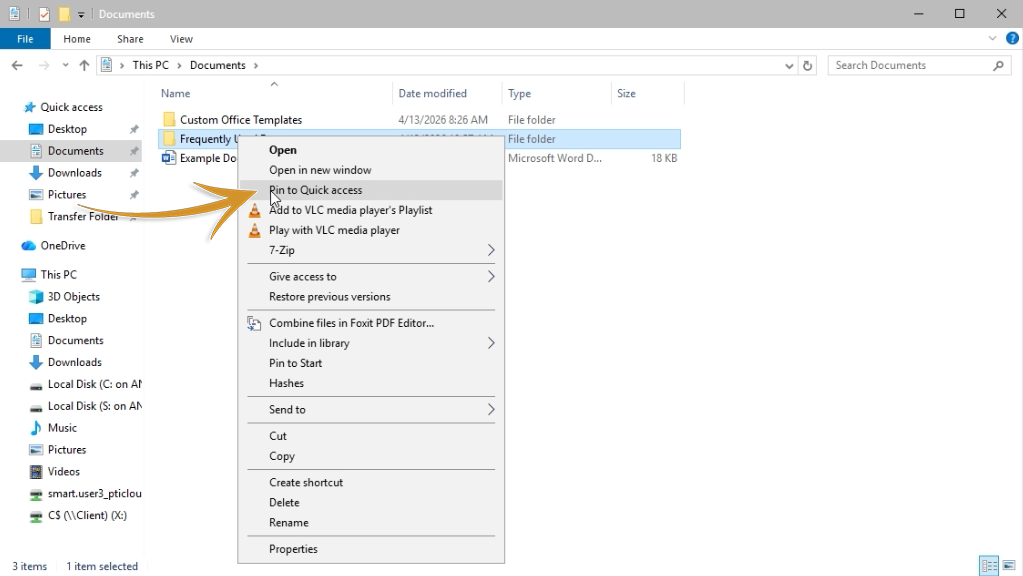
Folders that you need to access frequently can be pinned to the left panel for faster navigation. Once pinned, the folder can be opened with a single click from any file explorer window.
To pin a folder:
- Right-click the folder you want to pin.
- Select Pin to Quick Access.
- Optionally, you can instead drag the folder to the words Quick Access in the upper left corner of the file explorer.
The folder will appear in the left panel under Quick Access and remain available across future file explorer sessions.
Taking time to familiarize yourself with where information is stored, whether in personal Documents or the Company Shared Drive, can significantly speed up your navigation of the ProZone environment.
Was this article helpful?
That’s Great!
Thank you for your feedback
Sorry! We couldn't be helpful
Thank you for your feedback
Feedback sent
We appreciate your effort and will try to fix the article