Use the steps below to sign in to MyPortal and launch your ProZone applications.
Step 1: Sign in to MyPortal
Open your web browser and go to https://myportal.procirrus.com. Sign in with your credentials and complete your multifactor authentication.
Step 2: Open the ICA file when an application launches
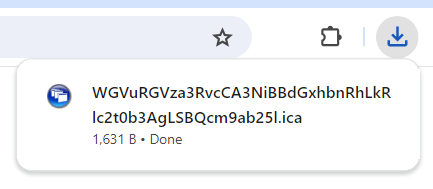
When you start an application for the first time, your browser may save it as a download. Look for a file ending in .ica and click it to open the file and launch your application.
Step 3: Configure your browser to open ICA files automatically
Most browsers can open ICA files automatically so that you do not have to click the download each time you launch an application from the ProZone Desktop.
To configure your browser, right-click the downloaded file in the download manager and choose Always open files of this type.
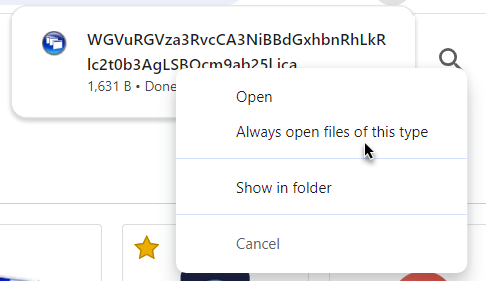
Tip: This setting only needs to be configured once per browser. After it is set, ProZone applications will open automatically when you click them on MyPortal.
Step 4: Choose your local resource access level
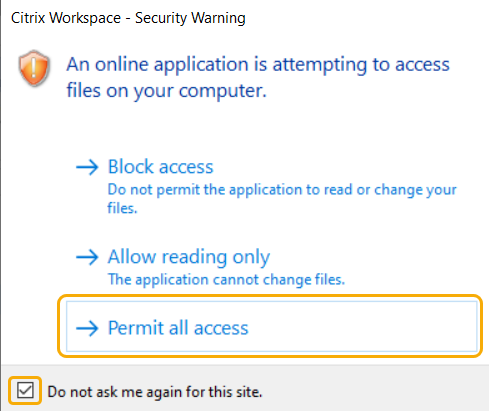
After installing Citrix Workspace, you may be asked to choose how much access your ProZone session has to your local computer. This is a standard prompt.
If you want your ProZone session to use local resources such as your drives, choose Permit all access and check Do not ask me again for this site.
Was this article helpful?
That’s Great!
Thank you for your feedback
Sorry! We couldn't be helpful
Thank you for your feedback
Feedback sent
We appreciate your effort and will try to fix the article