Printing from the ProZone works much like printing from a local device, with the addition of network printers managed by your organization. This article covers how to access your available printers, set a default printer, and the difference between local and ProZone server printers.
Video: Configuring Printers in the ProZone
Opening the Printer Management Page
The printer management page is where all available printers are listed and where the default printer is set.
To open the printer management page, select the Devices and Printers icon from either the Home or Apps tab of the ProZone desktop.
Viewing Available Printers
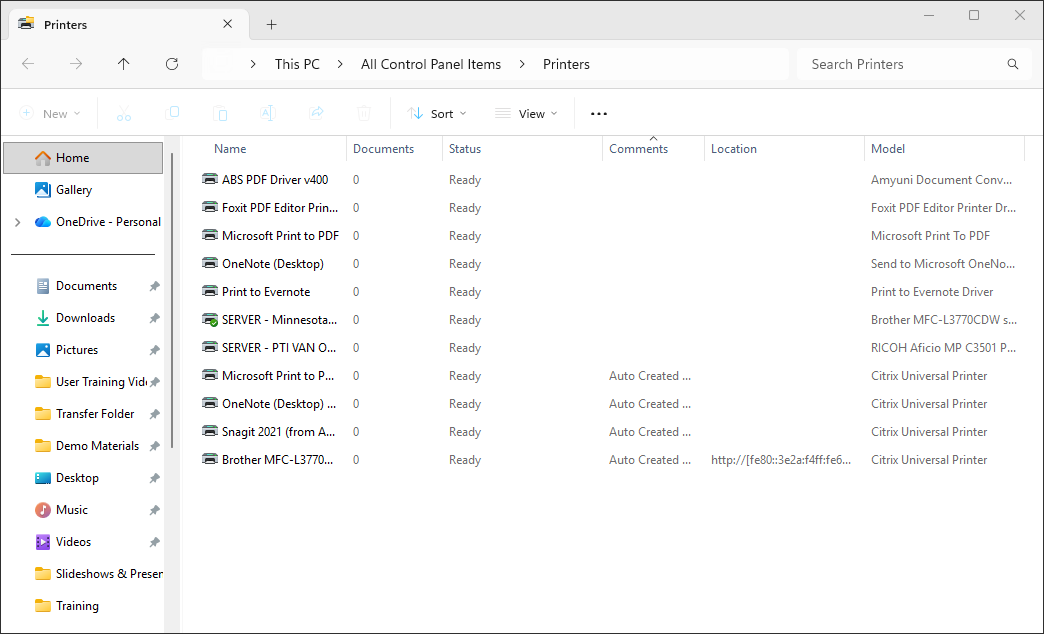
The printer management page lists all printers available to the current session, including both local printers (connected directly to your device) and network printers provided by your organization.
Note: Printers configured in the ProZone begin with the word SERVER. This prefix makes it easy to distinguish ProZone server printers from local printers in the list.
Setting a Default Printer
To set a default printer:
- Right-click the printer you want to use most often.
- Select Set as Default Printer.
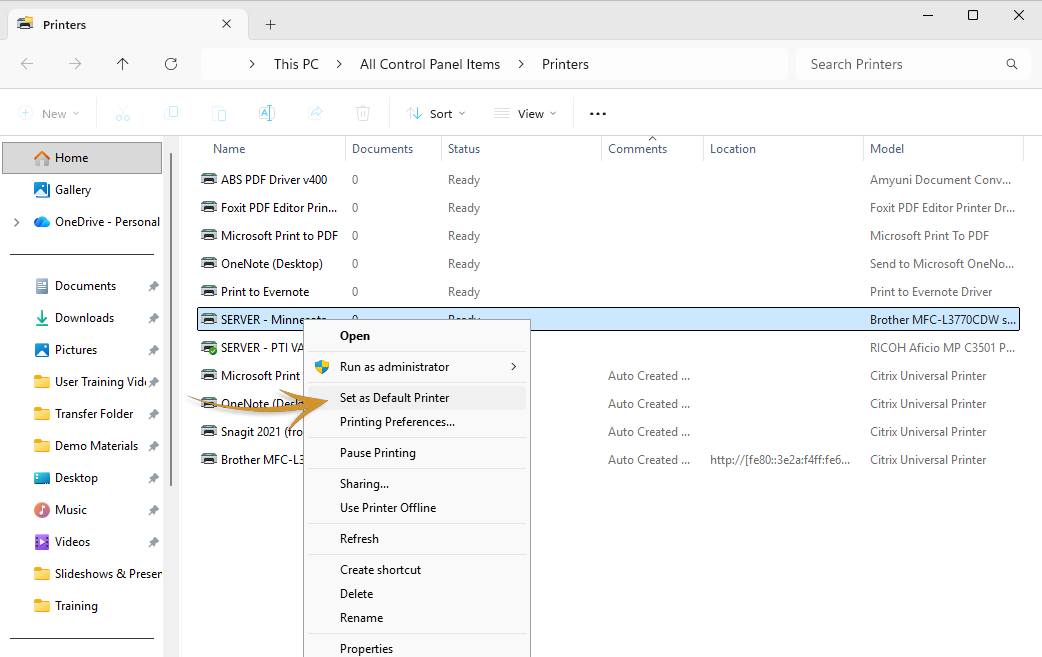
Tip: If you work from multiple locations, repeat this process to set a different default printer at each location as needed.
Local vs. ProZone Server Printers
Understanding the difference between local printers and ProZone server printers helps determine which printer is appropriate for a given task.
| Printer Type | Description | Best Use |
|---|---|---|
| Local Printer | Connected directly to your computer, usually via USB. Available only when you are physically at that device. | Personal use at a single workstation, typically due to a need to scan or save files locally. |
| ProZone Server Printer | Also called network or cloud printers. Managed by your organization and available within the ProZone environment regardless of login location. | Shared office use, remote access, and everyday printing work. |
Was this article helpful?
That’s Great!
Thank you for your feedback
Sorry! We couldn't be helpful
Thank you for your feedback
Feedback sent
We appreciate your effort and will try to fix the article