Our seamless desktop lets you access drives on your local computer from your ProZone cloud desktop, which is useful when importing locally stored documents like scans. To make it easier to find local files, we publish a local folder called the Transfer Folder.
Note: Although you can access local files from ProZone applications directly, it is highly recommended that you copy the local file (especially large files) to your ProZone folders before opening or indexing them with your application. This improves speed and reduces the chance of errors.
On your local computer
The view below is an example file explorer on a local computer. The local explorer looks similar to the ProZone explorer but does not include your cloud folders. Depending on your version of Windows it may look slightly different.
- If you are on a ProCirrus managed computer, you should have a shortcut to the Transfer Folder on your desktop (1 in Figure 1).
- If you do not have a shortcut, you can create one or access the Transfer Folder in your C: directory (2 in Figure 1).
- To pin the Transfer Folder to your Quick Access list (4 in Figure 1) or to create a desktop shortcut, right-click the folder (3 in Figure 1). You can also access the folder directly without pinning it.
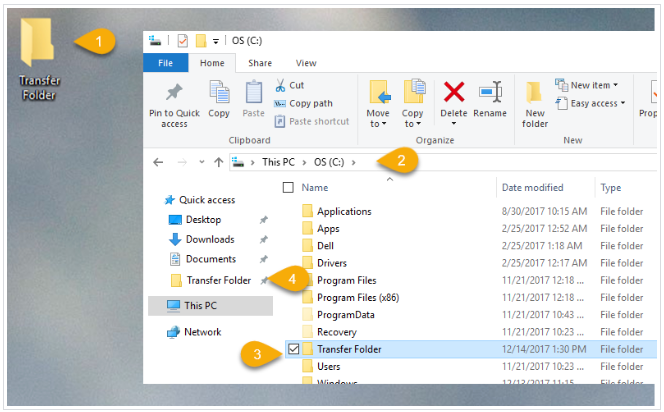
Figure 1
Note: You can access any file on your local desktop from the ProZone. We place the Transfer Folder at the top level of your C: drive so it is easy to locate.
File Explorer in the ProZone
To access your ProZone File Explorer, launch the Desktop-ProZone or Documents-ProZone application.
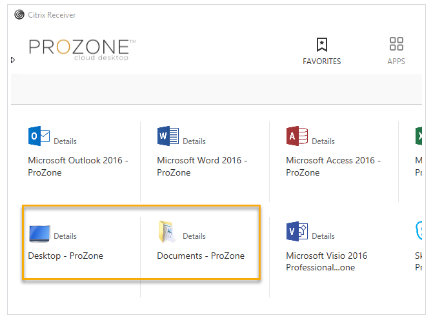
Figure 2
The ProZone file explorer can be a little confusing because it combines both your cloud and local folders.
- Local locations (1 and orange boxes in Figure 3) have unique names next to the folder, usually starting with \\ or \\Client. The other folders are specific to your user account in the ProZone.
- To add your local Transfer Folder to your ProZone Explorer, navigate to C$\Client on your local C drive (1 in Figure 3). Right-click the Transfer Folder (2 in Figure 3) and select Pin to Quick access (3 in Figure 3). The Transfer Folder will be added to your Quick Access links (4 in Figure 3).
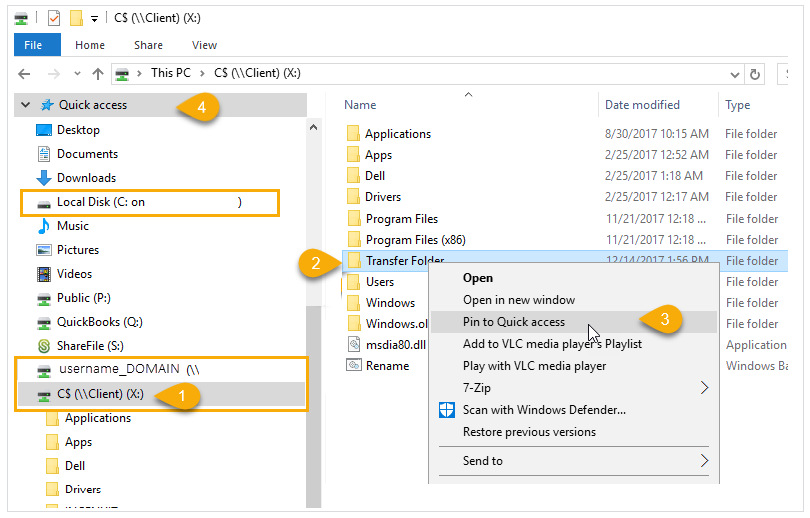
Figure 3
Copying files from your Transfer Folder to the ProZone
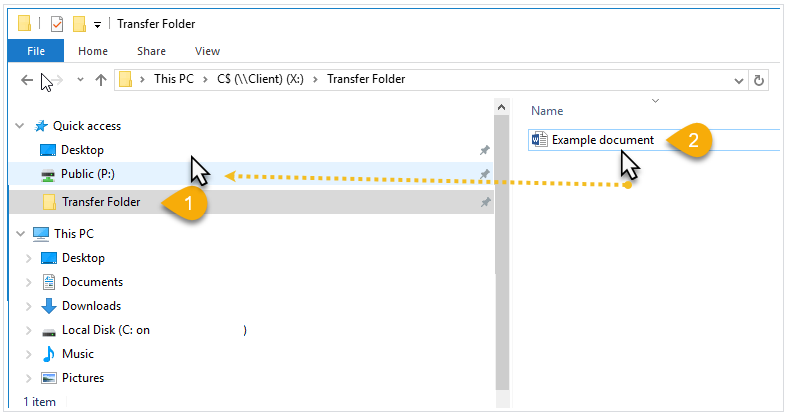
It is best to copy your files to the ProZone before manipulating them with any ProZone application, especially when indexing or profiling documents into an application.
To move files into the ProZone:
- Launch the Desktop-ProZone or Documents-ProZone application from the ProZone (Figure 2).
- Navigate to your Transfer Folder (1 in Figure 1) from the ProZone file explorer. If you pinned it earlier, it is in your Quick Access list. The address line in the explorer shows ...C$\Client (X:), which is the local C drive.
- Copy or drag and drop your files into your desired ProZone folder.
Was this article helpful?
That’s Great!
Thank you for your feedback
Sorry! We couldn't be helpful
Thank you for your feedback
Feedback sent
We appreciate your effort and will try to fix the article