Mobile device management (MDM) is a critical security measure that protects company data, like email, on mobile devices. It is a common requirement of compliance policies and regulators. Once enabled, it ensures that company data is encrypted and protected by an additional passcode, significantly increasing the security of your email on your device.
Note: Samsung, OnePlus, LG, Pixel, Oppo, Nokia, Motorola, and Kyocera are all considered "Android" phones because they all run a variant of the Android operating system.
Important: If you have any other MDM certifications on your phone (for example, Intune) for managing email, you must uninstall them first. On most Android phones, go to Settings > General and scroll down to Profiles & Device Management. On a Samsung phone, go to Settings > Biometrics & Security > Other Security Settings > Device Admin Apps. Leaving conflicting profiles in place can prevent enrollment or block access to company email.
Video: Citrix Secure Hub install on Android
Section 1: Install the Citrix Secure Hub
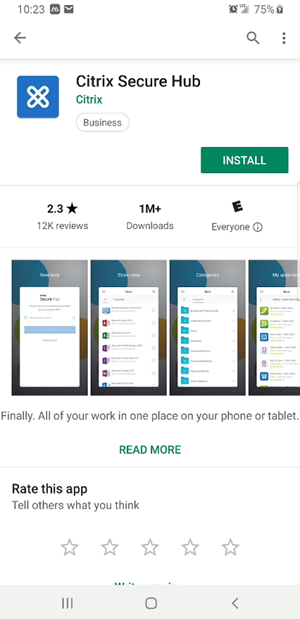
Step 1: Install Citrix Secure Hub from the Play Store
Open the Play Store on your phone  , then search for and install Citrix Secure Hub.
Step 2: Open the Citrix Secure Hub app
Once installed, open the Citrix Secure Hub app  .
.
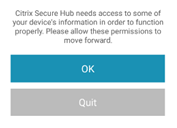
Step 3: Grant permission
When prompted for permission, tap OK.
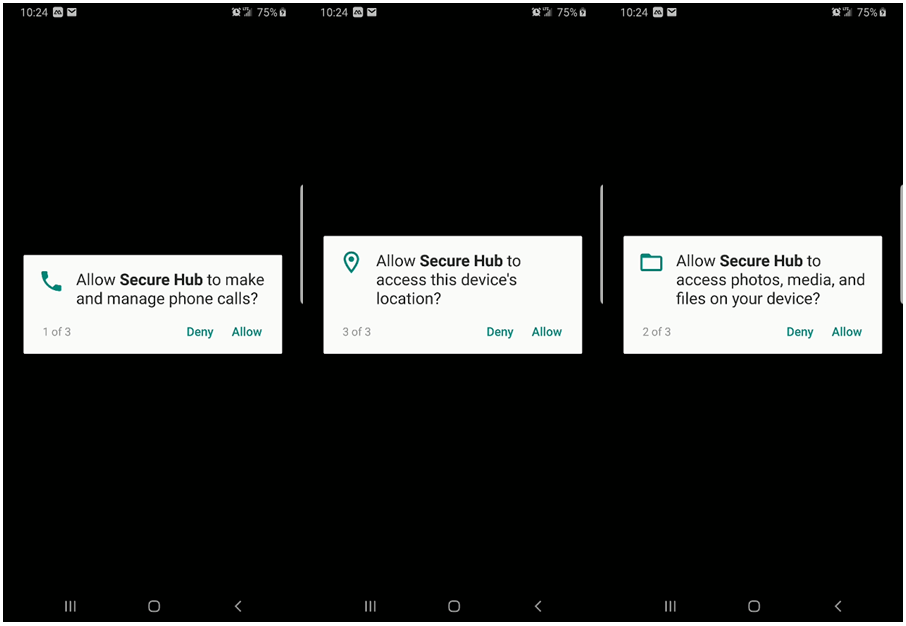
Step 4: Allow access
Tap Allow on the next three prompts to give Secure Hub the access it needs on your Android phone.
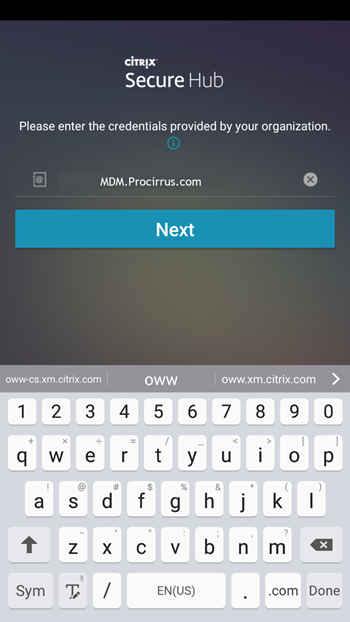
Step 5: Enter the server address
Enter mdm.procirrus.com (not case sensitive) into the UPN, Email, or Server field, then tap Next.
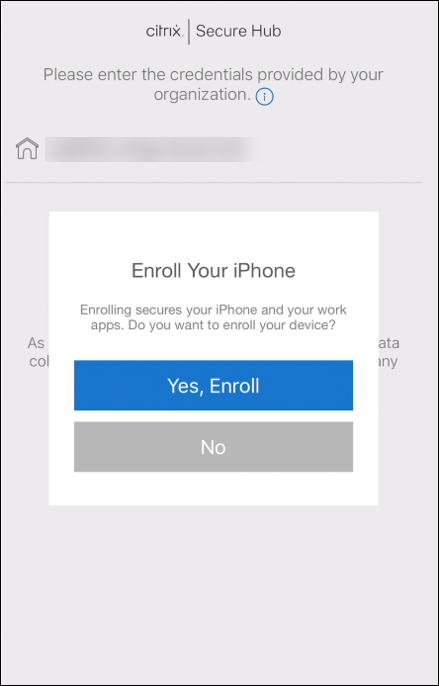
Step 6: Confirm enrollment
If prompted to enroll your device, tap Yes, Enroll.
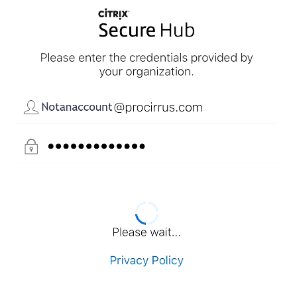
Step 7: Sign in with your email credentials
Enter your email credentials when prompted.
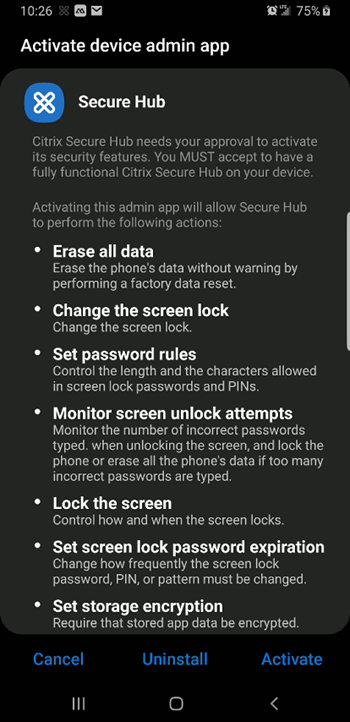
Step 8: Activate the application
Tap Activate to allow the application to install.
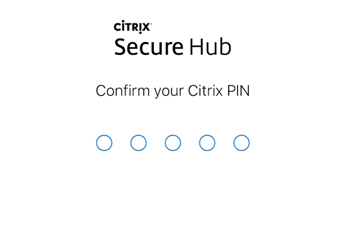
Step 9: Create your PIN
Create a PIN that you will use as the password for the app, then re-enter it to confirm.
Citrix Secure Hub is now installed. Read the section below that matches your firm's MDM deployment: MDM Light uses the Secure Hub to enroll the phone, then lets you use built-in mail apps such as Outlook or Samsung Mail. MDM Suite adds the Citrix Secure Mail app for highly secure company email.
Section 2: MDM Light — add your email
MDM Light uses Secure Hub to enroll the phone, then allows the use of built-in mail apps such as the Outlook app or the built-in Samsung Mail app, among others.
If your firm is using MDM Light, the configuration portion is complete. Now that Secure Hub is installed and enrolled on your device, you can download Microsoft Outlook from the Play Store, or use the built-in mail app for your device. Set up your email account using the instructions in Set up email in Android email app.
Section 3: MDM Suite — install Secure Mail
MDM Suite uses Secure Hub to enroll the phone and goes a step further by requiring the use of Secure Mail, a highly secure email app.
Citrix Secure Hub is now installed using the steps in Section 1. It is time to install the Secure Mail app. If you are prompted to install apps, proceed to Step 10 below. If not, install the Secure Mail and Secure Web apps manually: return to the Play Store where you installed Secure Hub, search for Citrix Secure Mail and Citrix Secure Web, and install them both like any other app on your phone. After installing them manually, skip ahead to Step 12 to add your account to the Secure Mail app.
Step 10: Open the Secure Hub store
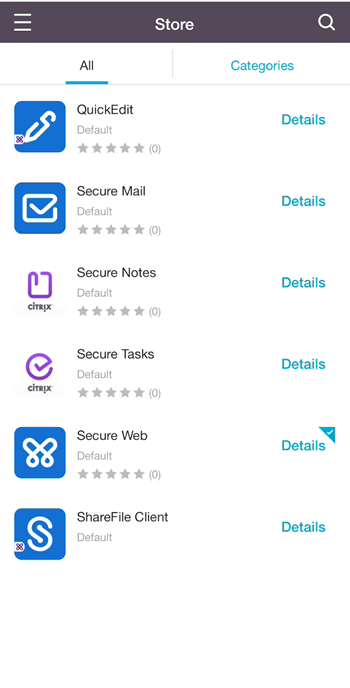
Tap the menu icon (three lines) in the upper left of the screen and select the Store application. This opens the application list shown below.
Step 11: Add and install Secure Mail
Select the app you want (Secure Mail in this case). Tap Add, then tap Install.
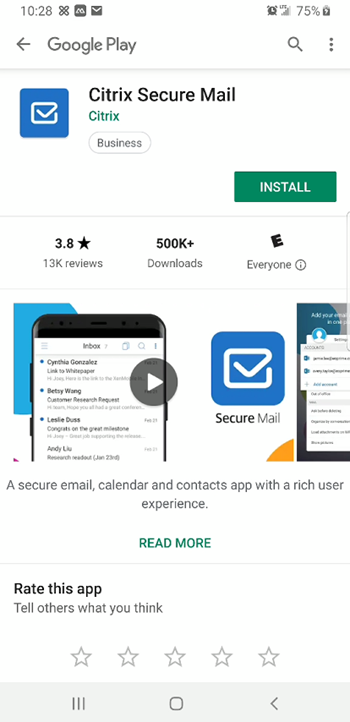
Tip: To install other apps, repeat the same steps. Select the app, tap Add, then tap Install. Secure Web is a web browser available in the Hub. If you are a ShareFile subscriber, you can install ShareFile through the Hub as well.
Step 12: Sign in to Secure Mail
After installing Secure Mail, you will need to authenticate. Launch the app from the Hub and enter your email credentials in the requested fields to sign in to your account.
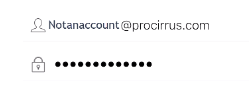
You will see a confirmation window once your account is configured. You are done!
Tip: If enrollment fails or you cannot reach the Secure Hub, contact ProCirrus Support for assistance.
Was this article helpful?
That’s Great!
Thank you for your feedback
Sorry! We couldn't be helpful
Thank you for your feedback
Feedback sent
We appreciate your effort and will try to fix the article