This guide provides step-by-step instructions to find your PC name on both Windows and macOS systems. Use whichever method is easier for your platform.
Windows
Method 1: Find your PC name in Settings
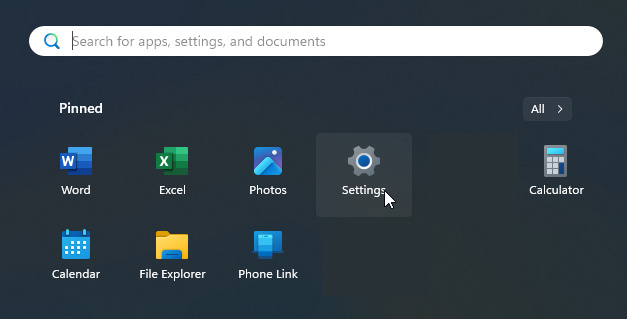
Click the Start menu and select Settings (the gear icon).
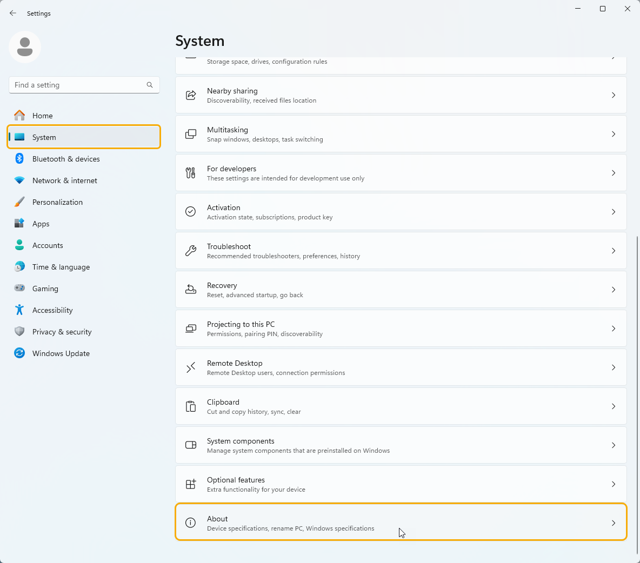
In Settings, go to System > About.
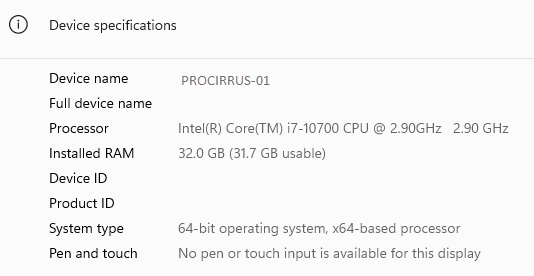
Under Device specifications, find Device name. This is your PC name.
Method 2: Find your PC name in Command Prompt
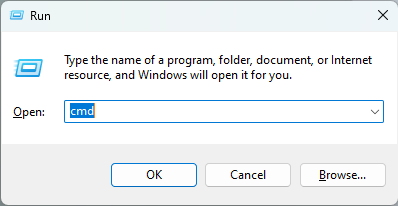
Press Windows + R to open the Run dialog, type cmd, and press Enter.
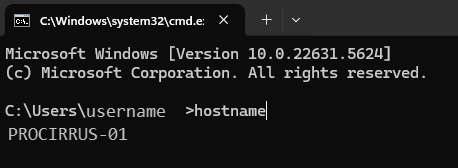
In the Command Prompt window, type hostname and press Enter. The output is your PC name.
macOS
Method 1: Find your Mac name in System Settings
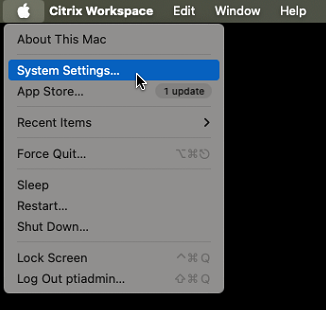
Click the Apple menu in the top-left corner and select System Settings (or System Preferences on older versions).
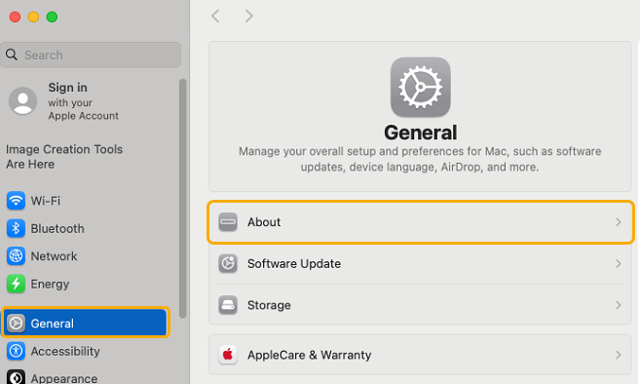
Go to General > About.
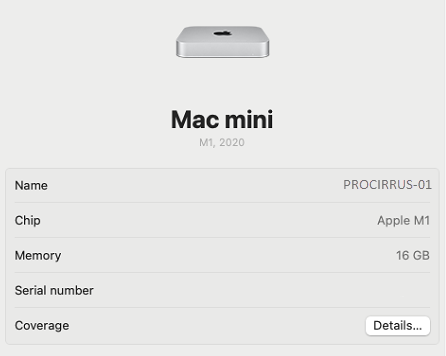
Your Mac's name appears at the top of the About page.
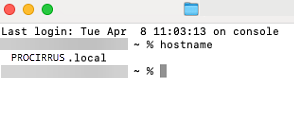
Method 2: Find your Mac name in Terminal
Open Spotlight Search (Cmd + Space), type Terminal, and press Enter.


In the Terminal window, type hostname and press Enter. The output is your Mac's name.
Tip: ProCirrus support may ask for your PC name when troubleshooting. Knowing where to find it on your platform makes those conversations faster.
Was this article helpful?
That’s Great!
Thank you for your feedback
Sorry! We couldn't be helpful
Thank you for your feedback
Feedback sent
We appreciate your effort and will try to fix the article