If your ProZone applications do not launch correctly, resetting Citrix Workspace often resolves the issue. The steps below clear and reconnect your Citrix Workspace configuration so it can rebuild a clean connection to ProZone.
Reset Citrix Workspace
Step 1: Open Advanced Preferences
On the taskbar at the bottom of your screen, click the Show hidden icons chevron, then right-click the Citrix Workspace icon and select Advanced Preferences.
Step 2: Reset Citrix Workspace
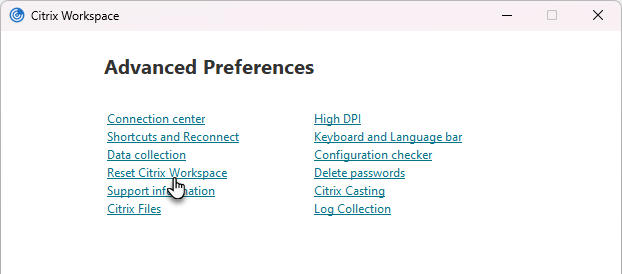
In the Advanced Preferences window, click Reset Citrix Workspace.
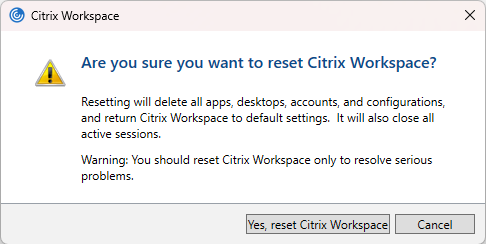
When the confirmation prompt appears, click Yes, reset Citrix Workspace.
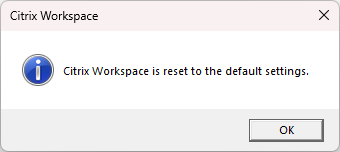
Once the reset completes, click OK.
Step 3: Add your ProZone account
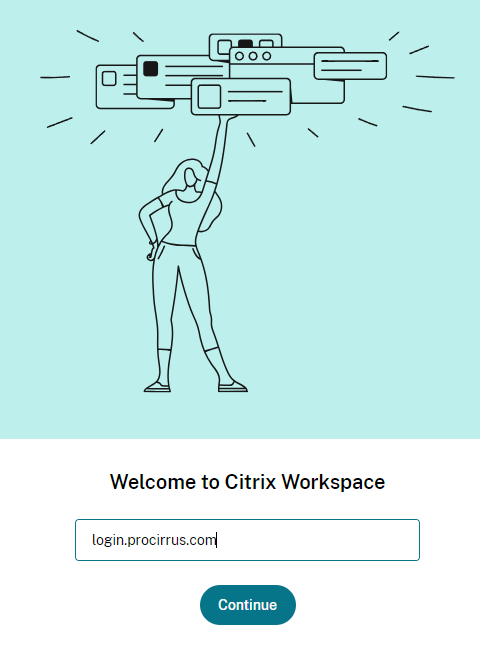
Enter the URL login.procirrus.com, then click Continue.
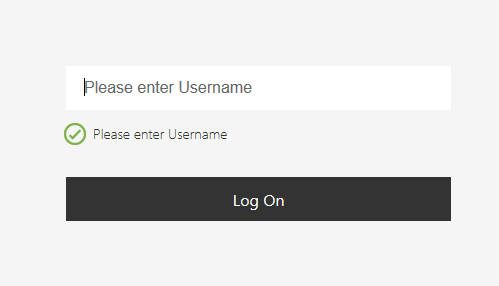
Step 4: Sign in with your username
Enter your username (your email address) in the username box and click Log On.
Step 5: Complete the ProZone MyPortal login
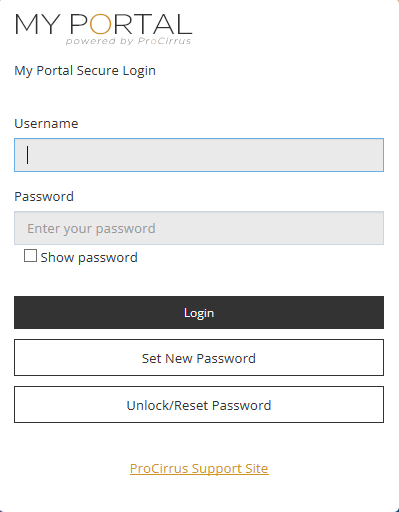
You will be redirected to the ProZone MyPortal logon page. Log in as normal using your username, password, and preferred MFA method.
Tip: After the reset completes and you have signed back in, try launching the ProZone application that was failing before. If applications still do not launch, contact ProCirrus Support so we can investigate further.
Was this article helpful?
That’s Great!
Thank you for your feedback
Sorry! We couldn't be helpful
Thank you for your feedback
Feedback sent
We appreciate your effort and will try to fix the article