To access your ProZone from devices not managed by ProCirrus, you will need to download and install the appropriate Citrix Workspace or Citrix Receiver for your operating system. This article covers where to get the installer and how to run it on a Windows computer.
Step 1: Download Citrix Workspace
Windows computers
- Windows 10 or newer (not upgraded from Windows 7 or 8): Citrix Workspace for Windows LTSR 2507
- Machines upgraded from or running Windows 8 or below: Citrix Receiver 4.9.9000 LTSR
Mac computers
- macOS 13 and newer: Citrix Workspace for macOS 13 and newer (latest version)
- macOS 12: Citrix Workspace for macOS 12
- macOS 11: Citrix Workspace for macOS 11
- macOS 10.12 and earlier: Citrix Receiver for macOS 10.12 and earlier
Note: Once Citrix Workspace is installed, you can access your applications with your normal ProZone credentials by navigating to the ProCirrus MyPortal page at https://myportal.procirrus.com.
Installing on Windows Desktops
After downloading the installer, follow the steps below to install Citrix Workspace on a Windows computer.
Step 1: Locate the installer
After saving the CitrixWorkspaceApp.exe file, find the file in your Downloads folder.
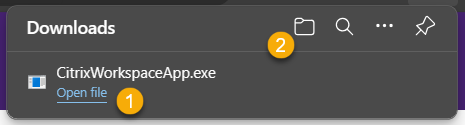
You can either click Open File to launch directly from your browser, or click the folder link in your browser's download manager to open your Downloads folder.
Step 2: Run the installer and allow changes
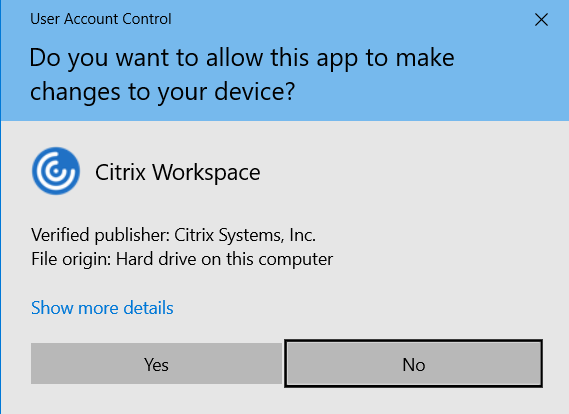
Double-click CitrixWorkspaceApp.exe. If Windows prompts you to allow the app to make changes to your device, click Yes.
Step 3: Start the installation
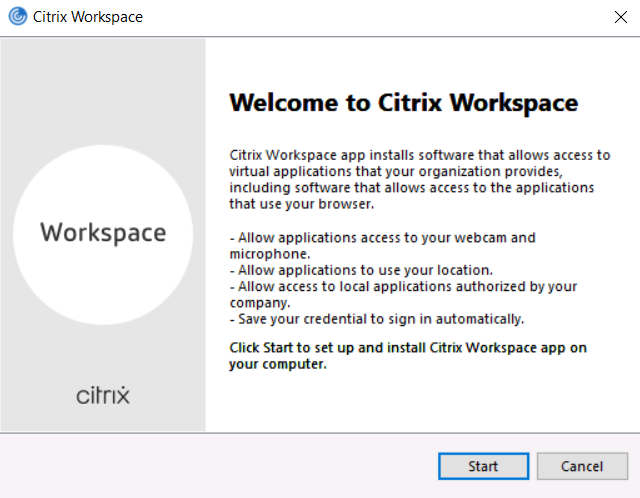
In the Welcome to Citrix Workspace dialog box, click Start to begin the installation.
Step 4: Accept the license agreement
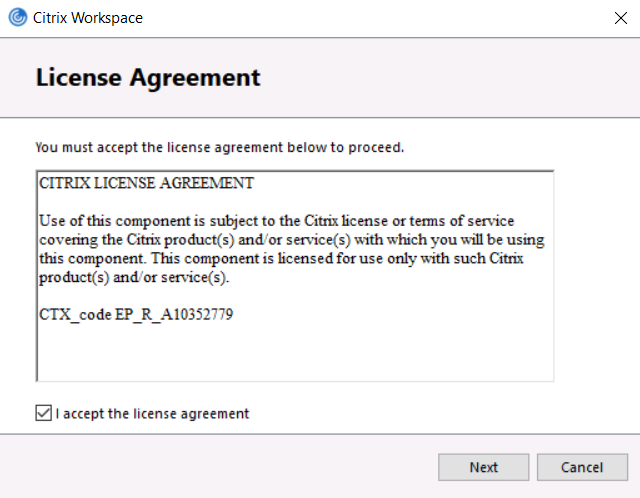
Accept the license agreement, then click Next.
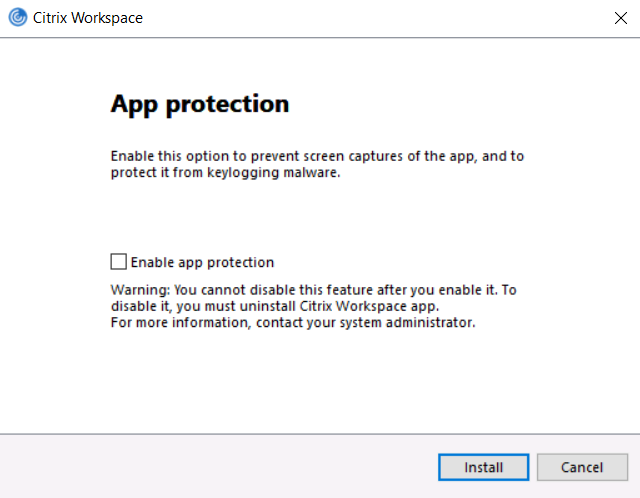
Step 5: Install
Leave Enable app protection unchecked. Click Install.
Important: Do not enable app protection. Enabling it can interfere with normal ProZone session behavior.
Step 6: Finish
When the installation is complete, you do not need to add an account. Click Finish.
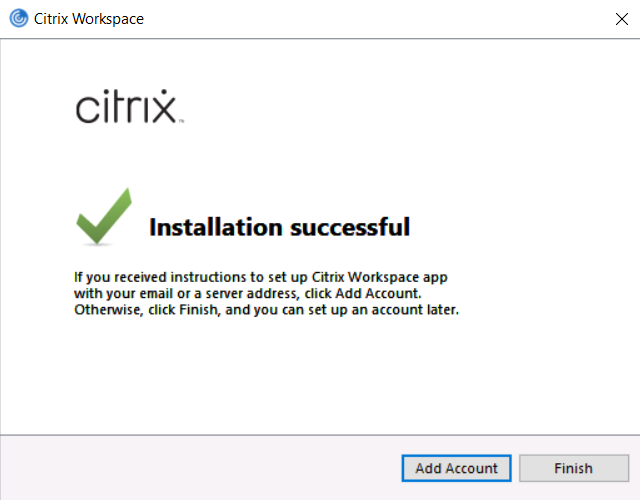
Tip: Once installation finishes, sign in to https://myportal.procirrus.com with your normal ProZone credentials to launch your applications.
Was this article helpful?
That’s Great!
Thank you for your feedback
Sorry! We couldn't be helpful
Thank you for your feedback
Feedback sent
We appreciate your effort and will try to fix the article