If you frequently work with someone else's Exchange folders, you can add the other person's Exchange mailbox to your Outlook profile. Doing so automatically opens the other person's mailbox each time you open Outlook, and the other mailbox appears in the Navigation Pane beneath your own Exchange folders.
Note: The person sharing the mailbox must grant you Folder Visible permission on the root folder of the Exchange mailbox. The shared mailbox usually appears as Mailbox - user name.
As the delegate, do the following in Outlook
Step 1: Open Account Settings
On the Tools menu, click Account Settings.
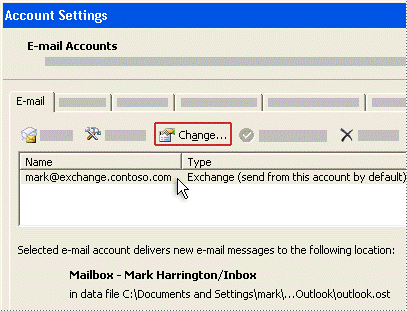
Step 2: Change the Exchange account
In the list, click your Exchange account type, then click Change.
Step 3: Open the Advanced tab
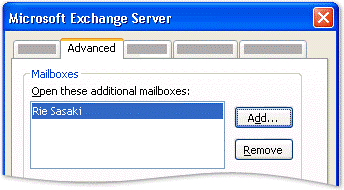
Click More Settings, then click the Advanced tab.
Step 4: Add the mailbox
Click Add, then enter the mailbox name of the person whose mailbox you want to add to your profile.
If you do not know the mailbox name, ask the person who granted you Delegate Access permissions.
Was this article helpful?
That’s Great!
Thank you for your feedback
Sorry! We couldn't be helpful
Thank you for your feedback
Feedback sent
We appreciate your effort and will try to fix the article